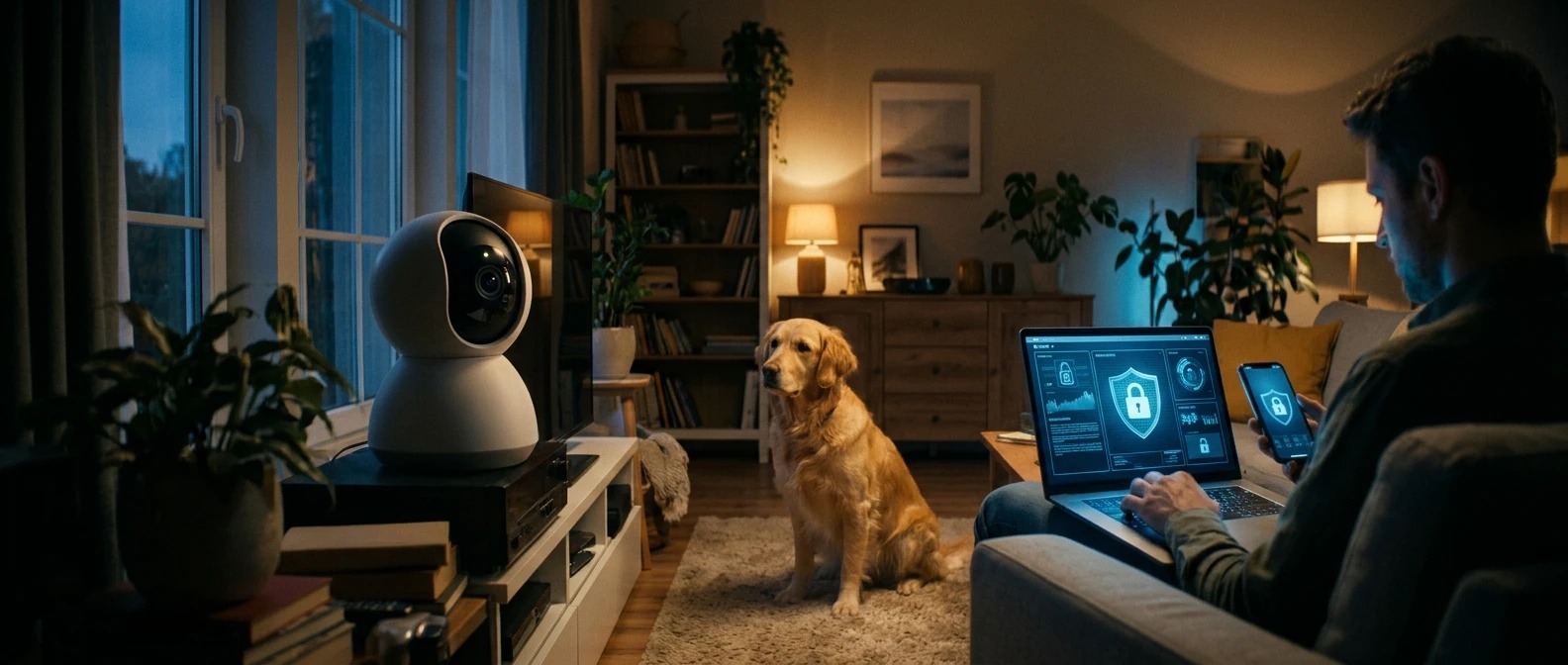
Is Your Pet Camera Watching You? How to Lock Down Your Feed, Your Account, and Your Footage
SPOIL MY PET • PRIVACY CHECK
You bought the camera to watch the dog—not give someone else a tour of your living room. A few settings can make a meaningful difference to who can watch, listen, and save what happens at home.
A pet camera can reveal more than a sleeping cat. Depending on placement and settings, it may capture conversations, visitors, valuables, and your daily routine. That does not mean someone is watching you. It means the feed deserves the same attention you give your other private accounts.
Start with three questions: Who can sign in? What can the camera capture? Where do the recordings go? Menu names vary by brand, so use this checklist alongside your model’s current instructions.

1. Lock Down the Account—and Its Recovery Email
Use a long, random password generated by a password manager. Never reuse the password from another account. If the service supports a passkey, consider enabling it and keeping recovery options secure.
Turn on two-factor or multifactor authentication. Prefer a phishing-resistant option, such as a supported security key or passkey. An authenticator app is another option; if text messages are the only choice, enable that protection rather than leaving the account password-only.
- Secure the email account that receives password resets.
- Verify that recovery phone numbers and email addresses belong to you.
- Save recovery codes somewhere secure, away from the camera feed.
- Use the app’s session controls to sign out unfamiliar or unused devices.
Open the official app yourself when checking an alert. Do not follow an unexpected “your camera was hacked” link or give anyone a sign-in code.
2. Review Everyone Who Can Watch
Check menus such as Shared Users, Household, Members, Authorized Devices, and Connected Services. A former pet sitter’s access should not become a lifetime subscription to your home.
Use individual invitations instead of sharing your main login. Grant only the permissions needed, remove expired invitations and old users, and disconnect smart-home services you no longer use. Each invited person should protect their own account too.
Check whether viewers can download clips, operate two-way audio, move the camera, or invite others. Changing your password may not revoke separate user accounts or every existing session.
3. Limit What the Camera Captures
| Setting | What to Check |
|---|---|
| Camera Angle | Keep bedrooms, bathrooms, documents, and computer screens outside the view. |
| Microphone | Disable audio capture if you do not need it; test a new recording. |
| Privacy Mask | Confirm what it hides in live view, recordings, and shared clips. |
| Motion Zone | Often controls detection or alerts; do not assume it hides the rest of the image. |
| Privacy Mode | Check whether it stops video, audio, and recording, or only one function. |
A physical shutter can block the lens, but it does not necessarily disable the microphone. If you want the device off, power it down according to its instructions. For battery-equipped cameras, unplugging a cable alone may not switch it off.
Tell household members and visitors about indoor recording. Keep the camera focused on the pet area, and never assume consent to audio recording.
4. Update the Camera, App, Phone, and Router
Check for camera firmware updates separately from app updates. Enable automatic security updates where available and keep the phone used to view the feed current.
Look up the camera’s support period. An unsupported device may keep streaming even after security fixes stop arriving. Continued operation is not proof of continued protection.
For your router, use a unique administrator password, current firmware, an enabled firewall, and WPA3 Personal or WPA2 Personal Wi-Fi security. Avoid outdated WEP or original WPA settings.
A separate guest or IoT network can help when it actually isolates devices from your main network. Follow the router’s documentation: a different network name alone does not prove isolation. Test camera setup and viewing afterward.
Do not open router ports or disable the firewall just to make an app work. Use the manufacturer’s supported setup or ask for help with the specific connection issue.

5. Know What “Encrypted” Actually Covers
Encryption in transit protects data while it travels. Encryption at rest protects stored data. Neither phrase, by itself, tells you whether the provider can access the video.
End-to-end encryption is designed to limit decryption to authorized endpoints. Availability and implementation vary, and enabling it may change sharing or cloud-analysis features. Check the exact model, service, and recovery instructions.
Ask: Who holds the keys? Is protection enabled by default? Does it cover live video and stored clips? What changes when I share or download footage? A strong encryption feature does not protect you from someone using an already-authorized account.
6. Follow the Footage After It Leaves the Camera
Check every storage location: cloud history, the camera’s memory card, a home recording hub, your phone, and any computer used for downloads.
- Retention: Choose the shortest recording history that meets your needs.
- Shared Links: Review and revoke links separately from deleting private recordings.
- Downloaded Clips: Check photo-library backups and other automatic uploads.
- Local Storage: Ask whether the card or drive is encrypted and what happens if someone removes it.
- Optional Processing: Review settings for AI features, product improvement, and video contributions.
Ring’s documentation, for example, says deleting a private video does not automatically unshare it. The steps differ across services, so check both the recording library and the sharing controls.
Revoking a link cannot erase a copy someone already downloaded. Local storage also does not automatically mean the camera has no internet connection or remote access.
If Something Looks Wrong
An unexpected camera movement, light, or sound is not proof of a break-in. Auto-tracking, another authorized viewer, and updates can also change device behavior. Check access records and account notices where available.
- Stop Exposure: Disconnect or power down the camera if you suspect unauthorized viewing.
- Keep Useful Evidence: Save suspicious alerts, timestamps, and available access logs.
- Secure Accounts: From a trusted, updated device, protect your email and camera login, revoke sessions, and review recovery details.
- Remove Access: Check users, share links, and connected services.
- Contact Official Support: Ask about recent account activity and the correct recovery process.
Do not immediately factory-reset the camera if doing so could erase useful records. A reset alone also does not secure a compromised cloud account.
Before Selling or Giving Away the Camera
Remove shared access, handle cloud recordings and links, unlink the camera from your account, and follow its factory-reset procedure. Remove any memory card or securely erase it according to the manufacturer’s guidance. Deleting the app is not the same as removing the camera or closing the account.
Frequently Asked Questions
Can Someone Watch If They Know My Wi-Fi Password?
Wi-Fi access alone does not necessarily grant camera access, but it can increase exposure. Protect both the network and the camera account.
Does Turning Off Motion Alerts Stop Recording?
Not necessarily. Alerts, recording schedules, audio, and live viewing can have separate controls. Test the setting rather than assuming.
Is a Camera Without Cloud Storage Automatically Private?
No. Check remote viewing, account access, local encryption, and firmware support. Storage location is only one part of security.
Can I Still Share Access With a Pet Sitter?
Yes, if the service supports it. Use a separate invitation, limit permissions, and remove access when the job ends.
Keep the Pet in View—and Your Private Life Out
Start with the account, reduce unnecessary capture, and check where recordings are stored and shared. Repeat the review when you change phones, invite a viewer, move the camera, or stop using it.